Hand your phone to anyone. Get your shot.
Choose your framing once. Goodside puts two quiet marks on the screen and whoever is holding your phone lines the photo up to them. No directing. No do-overs.

iPhone · 7-day free trial · Runs entirely on your device
The problem
You hand over your phone. You smile through forty shutter clicks. And later you scroll through crooked horizons, cropped ankles and acres of sky, because the person holding your phone never saw the photo you had in mind.
Goodside shows them.
How it works
Three moves. Only the first one is yours.
No. 1
Set your shot
Tap a shot type, pick a framing from the library, or build a Style Profile from a photo of your own. Goodside places two anchor marks and remembers them.
No. 2
Hand it over
A friend, a waiter, a stranger. They see two marks, a level line and a tilt bar. They never need the app, an account or a word of explanation from you.
No. 3
They land it
Your head to the top mark, your feet to the bottom one, level line straight. They tap the shutter. What lands in your album is framed edge for edge like the screen they were looking at.
Setting the shot
Three ways in. All of them take one tap to use again.
However you set it, the result is the same two marks on the grid. What changes is how much you want to think about it.
One · Quick
Three shot types
Full body, mid body, seated. Tap one and the marks are on screen before you have finished handing the phone across the table. Nothing to set up, nothing to import.
Full body puts your feet at the frame edge. Mid body cuts at the waist. Seated puts the table edge on the lower third, the way a good dinner photo is built.
Two · Your own photo
Style Profiles
Pick a photo from your camera roll whose framing you love. Goodside reads it on device and drops the two anchors where it thinks they belong. You drag them until they are right, and that becomes a profile you can reuse forever.
Both anchors move independently, in both directions. You author the target, so it is right by construction rather than right by guess.
Three · Borrow one
The framing library
127 framings, each already carrying its anchors. Filter by place and by shot type, heart the ones you like, and open the camera coaching any of them.
Useful when you know the photo is not working but cannot name what to change. Pick the one that looks like what you want and hand the phone over.
The framing library
127 photographs, each one already solved.




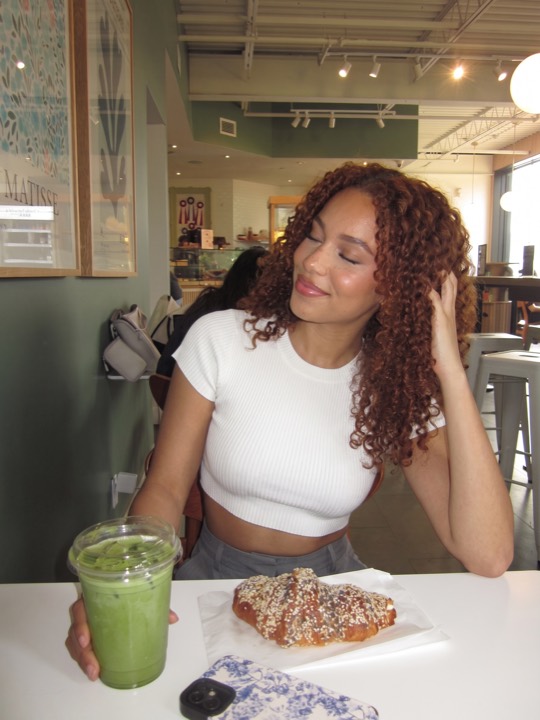
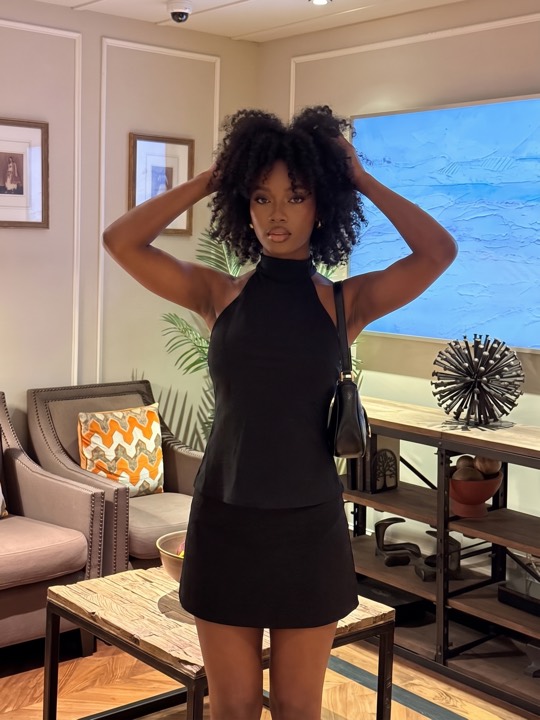


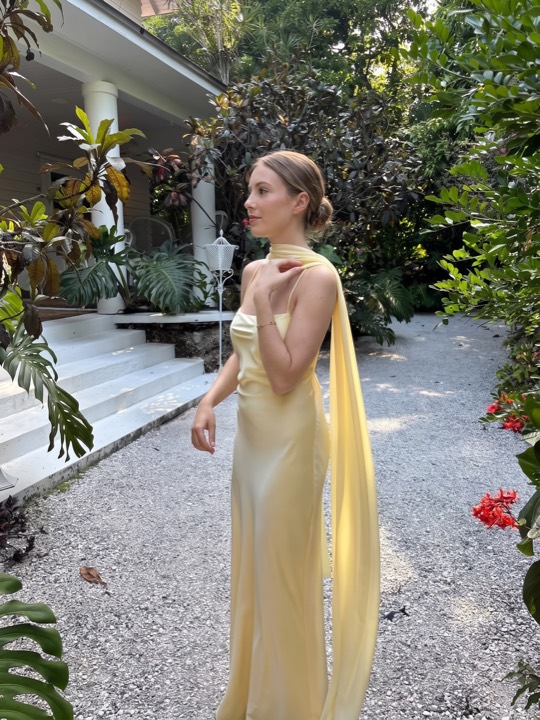
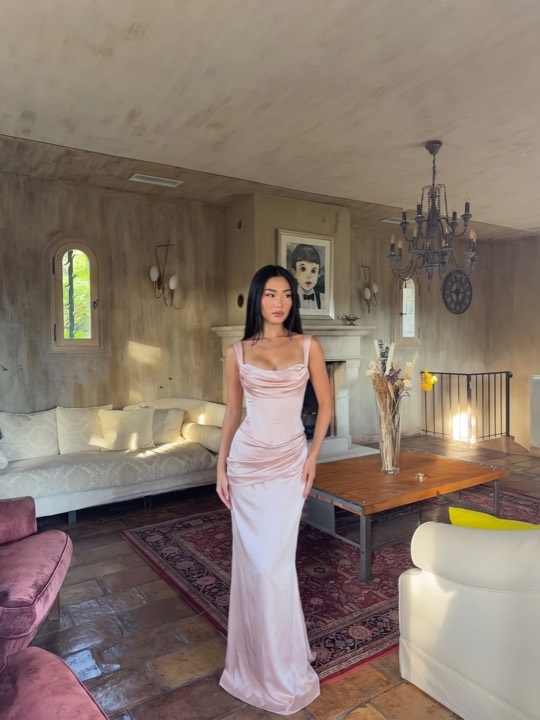
Every mark above is the real one. These are anchor positions read straight out of the app's framing catalogue, drawn the way the camera draws them: a tick on the target, a caption offset clear so it never hides the thing it names.
Inside the app
A camera, and the quiet things around it.
Everything one tap from the shutter
Your saved styles, the framing library and your recent Goodside shots, on the screen you land on. The camera is always one tap away in the tab bar.
101 photography tips, one a day
Short, practical, nothing about filters. Where to stand, what to cut, how to read the light, how to ask a stranger. A push arrives Tuesday, Thursday and Saturday, never daily, and you can turn it off.
Shoot it again, framed the same
Photos taken with Goodside land in their own album. Open one and shoot it again with the framing it was taken on, already loaded.
Drag the guides where you want them
Any guide can be moved by hand and snaps to the thirds, the centre and the other mark, with a tap of haptic feedback when it catches. Reset returns the original in one tap.
Level, and pointed the right way
A centre line matching the native camera's for left-to-right roll, and a right-edge bar for up-and-down tilt. Together they stop the two mistakes that ruin most handed-over photos.
Profiles do not expire
Styles you build stay on your phone whatever happens to your subscription. If it lapses they lock rather than disappear, and unlock again exactly as they were.
What it knows
Not filters. Not editing. Framing.
Goodside holds the composition rules a good photographer carries in their head, and applies only the ones you chose. Every mark on screen is a decision you made before you let go of the phone.
- 1.Headroom Where your head sits in the frame, and how much space you actually want above it. Not an accident of arm length.
- 2.Horizon A live level, matching the one in the native camera, so nothing tilts unless you meant it to.
- 3.Placement Rule-of-thirds positioning, with your place in the frame set deliberately. Centred or off centre is your call, and each mark carries its own.
- 4.The cut Where the frame ends. Feet in, waist, or the table edge. A choice, not a surprise you find later.
- 5.The angle How far the phone is tilted up or down, on a bar at the edge of the frame. The difference between a photo taken at your height and one taken down at you.
- 6.What you get The preview is the full sensor frame at 4:3, so the photo saved to your album matches the screen they were looking at, edge for edge.
On your device
Your photos never leave your phone.
- The live camera Face position and phone angle are read frame by frame in memory, using Apple's own Vision and CoreMotion frameworks. Nothing is stored, nothing is sent.
- Your reference photos Read on device to place the anchors, then kept in Goodside's own storage on your phone. No upload, no cloud analysis, no third-party model.
- Your photos Saved to your own photo library when the shutter is tapped, and nowhere else. The guides are drawn on screen only, never burned into the picture.
- Accounts and analytics No sign up, no email, no ads, no tracking across other apps. Two things leave your phone, and neither is a photo: anonymous purchase status, so your subscription works, and anonymous usage counts, so we can see which screens confuse people and fix them.
Pricing
Seven days free. Then decide.
One purchase covers everything: all three shot types, unlimited Style Profiles, the whole framing library and every guide adjustment.
Monthly
$9.99 / month
Auto-renews monthly. Cancel anytime.
7-day free trial
Save 75%
Annual
$29.99 / year
That is $2.50 a month. Auto-renews yearly. Cancel anytime.
7-day free trial
Lifetime
$49.99
One-time purchase. Yours forever, no subscription.
No trial. It never expires.
Prices in US dollars. Final pricing is shown in your local currency on the App Store.
Subscriptions auto-renew unless cancelled at least 24 hours before the end of the current period. Payment is charged to your Apple Account at confirmation of purchase. The free trial converts to a paid subscription unless cancelled before the trial ends. Manage or cancel your subscription in your Apple Account settings at any time. See the Terms of Use and Privacy Policy.
Questions
Asked, answered.
Does the other person need the app?
No. Everything runs on your phone. They hold it, line the two marks up, and tap the shutter. There is nothing for them to install, learn or agree to.
How do they know when the framing is right?
By looking. Your head goes to the top mark, your feet or waist or the table edge goes to the bottom one, and the level line tells them the phone is straight. Goodside deliberately does not flash, buzz or change colour at them. It shows the target and lets them aim.
Does it work with strangers?
Yes, and that is what it was built for. The coaching is silent and entirely on screen, written for someone who has never opened the app. Two marks and a level line is less to explain than a sentence of directions.
What is a Style Profile?
A framing of your own, built from one photo you already like. Goodside reads the photo on device, drops a head anchor and a body-bottom anchor where it thinks they belong, and you drag them until they are exactly right. It becomes a reusable profile, and you can rename it, re-edit the anchors or swap the photo later.
What happens to my photos?
They stay on your iPhone. The live camera, the coaching and the reference photo analysis all run on device. No photo, camera frame or reference photo is ever uploaded, to us or to anyone else.
What does Goodside collect about me?
Nothing that identifies you. There are no accounts and no ads. Two kinds of anonymous data leave your phone: purchase information handled by Apple and RevenueCat to keep your subscription working, and usage counts (which screens were reached, which plan was picked) that help us improve the app. Neither ever includes a photo. The full detail is in our Privacy Policy.
Are the notifications going to be constant?
No. Tip of the Day arrives three times a week, on Tuesday, Thursday and Saturday morning, and there is a switch for it in Settings. It is scheduled locally on your phone.
What happens if I cancel?
You keep access until the end of the period you paid for, and if you cancel during the free trial before it ends you are never charged. Your saved profiles and photos stay on your phone. Coaching locks rather than disappears, and unlocks again if you come back.
Which iPhones are supported?
Any iPhone running iOS 17.6 or later. Goodside uses the standard camera and motion sensors, so no special hardware is required. The app is portrait only, by design.
Photo guides
How to get the photo you wanted.
How to get your boyfriend to take good photos of you
Two instructions fix most partner photos.
How to take full body pictures of yourself
Where to put the phone, how high and how far away.
How to take good photos at dinner
The table photo in thirds.
The next photo of you is yours to decide.